Installing and Starting the LNDB Service
The first time you open LNDB, the following message will occur indicating that the LNDB Engine Service is not running.
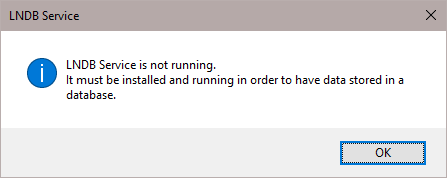
Once you press OK, the LNDB Engine Service Manager will open. This utility is used to install LNDB as a service and to enable/disable that service as required.
You must have administrative rights on your computer in order to run the Service Manager. If you do not have administrative rights, an error message will be displayed when the Service Manager tries to open.
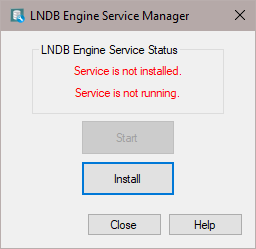
Press the Install button to install LNDB as a service. You will then be asked what account to install the service under.
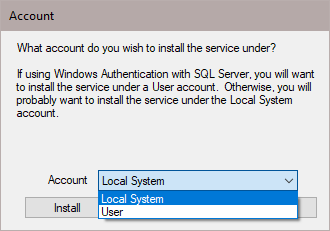
You can choose to install the service under the Local System account or under a User account. Note that a User account is most likely necessary if you are using Windows Authentication in SQL Server. In most other cases, the Local System account can be used. If User account is chosen, you will be asked to provide a username and password.
Once the application is installed as a service, press the Start button on the LNDB Engine Service Manager window to start the service.
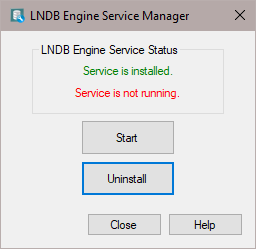
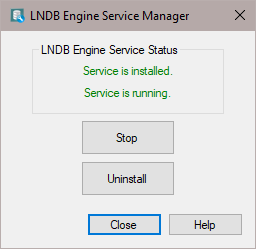
You can then press the Close button to close the LNDB Engine Service Manager.
Once LNDB is installed as a service, you can open the LNDB Engine Service Manager from the File > Configure LNDB Engine Service menu item or by double-clicking on the LNDB Engine Status Label on the Status Bar. The LNDB Engine Service Manager can also be opened directly from the LoggerNet toolbar under the Database category.