Add sensors
Add up to two pyranometers of each functional type (GHI, POA, Albedo pairs, DHI), two compact weather sensors, six RPOA pyranometers and back-of-module temperature sensors, and two soiling sensors. The sensor menus are grouped by general output type, functional type, and manufacture model. Only one sensor can be added at a time. Click the listing to open the submenu. Click the listing again to close the submenu.
-
Click the Measurement tab.
-
Click +Add Measurement to see a list of available sensors.
-
Click the general output type desired, the functional type, and the manufacture model desired.
-
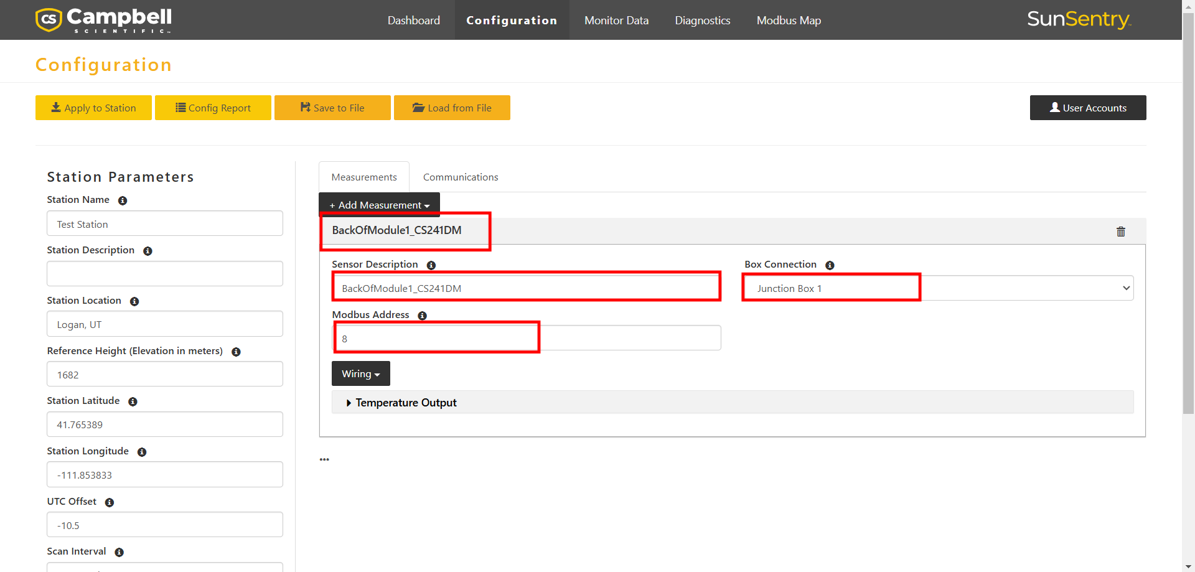
After a sensor appears in the list, type the parameters for that sensor to customize it for your application.
-
Most sensors require the Modbus Address to be changed to match the Modbus address of the specific sensor being used. A default address will appear and can be used by ensuring the sensor is configured for the same address. SDI-12 sensors are also available for selection and require the SDI-12 address.
-
Communications Port specifies which
-
Sensor Description is used as the title of the measurements on the Dashboard. Although editable, Campbell Scientific suggests using the default sensor description for most circumstances.
-
Some sensors require input from other sensor outputs to function properly. Select from the drop-down menu presented or input the required data.
-
-
View the wiring diagram for the sensor by clicking on Wiring.
-
If you selected a sensor by mistake or no longer wish to have the SunSentry G2 read data from it, remove it from the running configuration by clicking the trash can icon next to the sensor heading.
-
Once you have added all the sensors,