Connecting to Bluetooth
System requirements
Make sure your smartphone/tablet meets the following system requirements:
-
Operating system: iOS 13 or newer
-
Operating system: Android 5.1 or newer
-
Bluetooth 4.0 LE or newer
Download the Wireless Device Configurator app from the Apple App Store  or Google Play Store to your smartphone or tablet.
Connecting
Start the adjustment app and select the function "Setup". The smartphone/tablet searches automatically for Bluetooth-capable instruments in the area.
The devices found are listed and the search is automatically continued.
Select the requested instrument in the device list.
Authenticate
When establishing the connection for the first time, the operating tool and the sensor must authenticate each other. After the first correct authentication, each subsequent connection is made without a new authentication query.
Enter Bluetooth access code
To authenticate your device, enter the 6-digit Bluetooth access code in the next menu window. You can find the code on the outside of the device housing and on the information sheet "Pins and Codes" in the device packaging.
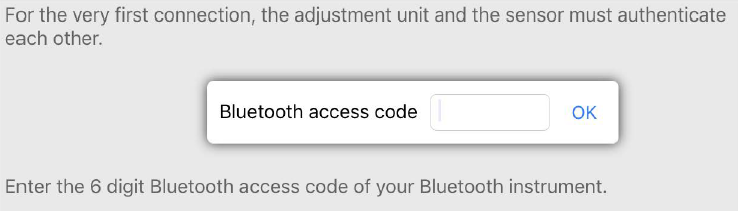
Enter Bluetooth access code
If an incorrect code is entered, the code can only be entered again after a delay time. This time gets longer after each incorrect entry.
The message Waiting for authentication is displayed on the smartphone/tablet.
Connected
After connection, the sensor adjustment menu is displayed on the respective adjustment tool.
If the Bluetooth connection is interrupted, this is displayed on the adjustment tool. The message disappears when the connection is restored.
Change device code
Parameter adjustment of the device is only possible if the parameter protection is deactivated. When delivered, parameter protection is deactivated by default and can be activated at any time.
It is recommended to enter a personal 6-digit device code. Go to Extended functions > Access protection > Protection of the parameter adjustment.
Parameter adjustment
The sensor adjustment menu is divided into two areas, which are arranged next to each other or one below the other, depending on the adjustment tool.
-
Navigation section
-
Menu item display
The selected menu item can be recognized by the color change.
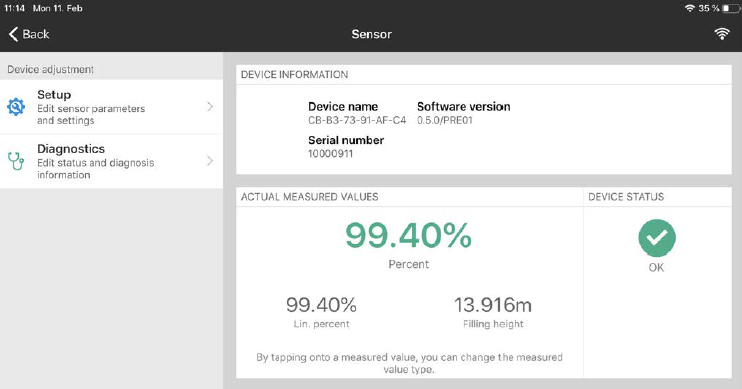
Example of an app view
Enter the requested parameters and confirm via the keyboard or the editing field. The settings are then active in the sensor.
Close the app to terminate connection.