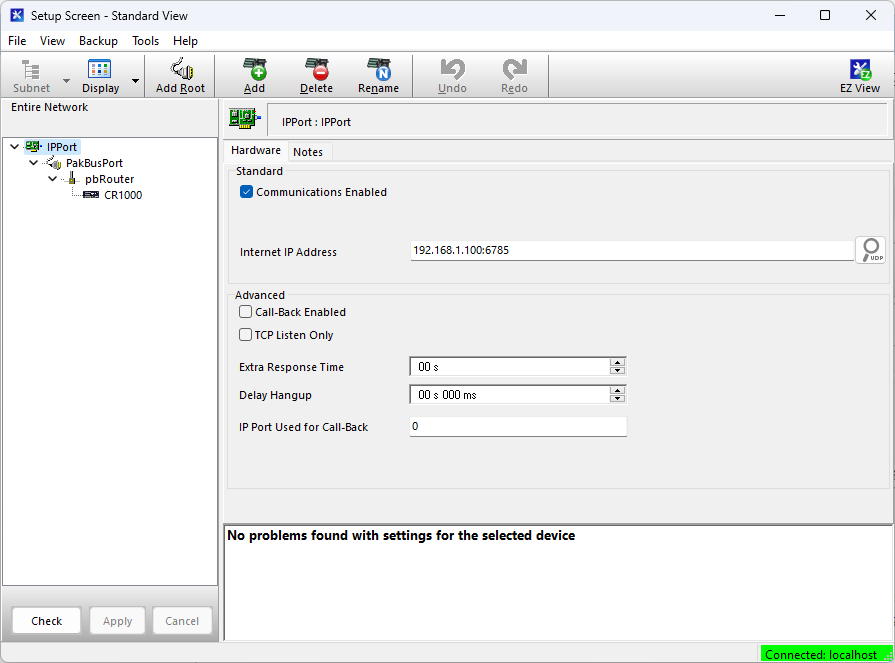
NL241 with cellular network
This type of network is useful when there is no cellular signal at the data logger but a cellular signal can be reached using
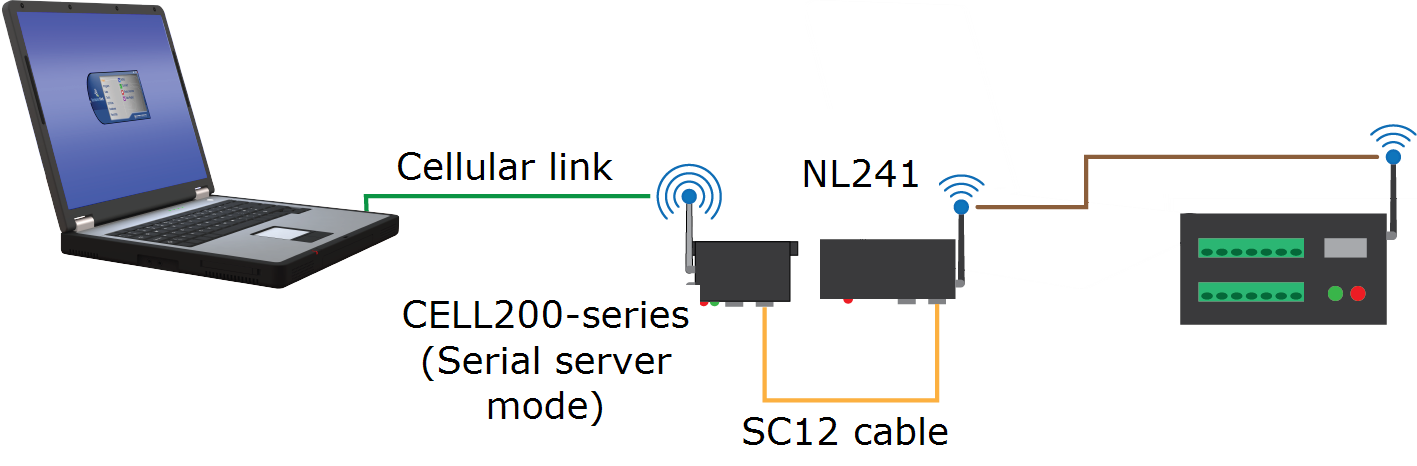
CELL200-series physical setup
-
Connect the CELL200-series and NL241 RS-232 ports using a straight-through RS-232 pin to socket cable such as an SC12.
-
Connect the cellular antenna, if it is not already connected.
-
Apply DC power to the CELL200-series and NL241.
Configure the CELL200-series as a serial server
-
Connect a USB cable between a USB port on your computer and the USB port on the CELL200-series.
-
Starting with the default settings, open a web browser and go to: cell.linktodevice.com.
NOTE:Cellular service must be setup before configuring the CELL200-series. See the CELL200-series manual for more information.
-
If the data logger has been assigned a public static IP address, on the Settings > General tab:
-
Enter the APN as assigned by your service provider.
-
Change Mode from PPP to Serial Server.
-
Click Apply to save the changes and then close the web browser.
-
-
If the data logger has been assigned a private dynamic IP address and you are using the Konect PakBus Router service, on the Settings tab:
-
General tab > Enter the APN as assigned by your service provider.
-
General tab > Change Mode from PPP to Serial Server/Client.
-
Serial Mode Setup > URL > Enter the Konect PakBus Router address.
-
Serial Mode Setup > Port Number > Enter the Konect PakBus Router port number.
NOTE:Konect PakBus Router connections through a CELL200-series modem do not support a TCP Password. Contact Campbell Scientific support for more information.
-
NL241 physical setup
-
Apply 12 VDC power to the data logger and NL241..
Configure the NL241
-
Connect to the NL241 in Device Configuration Utility (see Configuring the NL241).
-
Click the Factory Defaults button at the bottom of the Deployment window.
-
On the NL241 tab, set Bridge Mode to disable.
-
If a dynamic address is to be used, the network information acquired via DHCP can be seen on the NL241 tab under Status. The Status box also displays the MAC address of the NL241.
-
To enter a static IP address, select disable in the Use DHCP field. Then input the IP Address, Network Mask, and Default Gateway. These values can be provided by your network administrator.
-
On the RS-232 tab:
-
Set Configuration to PakBus.
-
Set Baud Rate to baud rate of attached cellular modem. Generally this is 115200 (default).
-
Set Beacon Interval to 60 (seconds) and Verify Interval to 0. If you want to restrict communications paths, use the PakBus Neighbors Allowed setting to specify allowed neighbor addresses.
-
-
On the Network Services tab, make note of the PakBus/TCP Service Port. The default PakBus/TCP Service Port is 6785. Unless firewall issues exist, it is not necessary to change the port from its default value. This port number must match the port number entered in LoggerNet Setup after the IP address. See Setup LoggerNet.
Configure the data logger
-
Connect to the data logger in Device Configuration Utility.
-
Click the Factory Defaults button at the bottom of the Deployment window.
-
On the Datalogger tab verify the PakBus Address.
-
On the Ethernet tab set:
-
Ethernet Power to Always On
-
IP Address to 192.168.1.1
-
Subnet Mask to 255.255.255.0
NOTE:The IP Gateway does not need to be set.
-
-
On the Network Services tab set the PakBus/TCP Clients Address to that of the NL241: 192.168.1.2. This will cause the data logger to communicate with the NL241 over PakBus.
-
Click Apply to save the changes and then close Device Configuration Utility.
Setup LoggerNet
-
In the LoggerNet Setup screen, click Add Root and select IPPort. Enter the CELL200-series IP address and port number. The IP address and port number are input on the same line separated by a colon. IPv6 addresses will need to be enclosed in square brackets when specifying a port number. An IPv4 address may look like 192.168.1.100:6785. An IPv6 address may look like [2001:db8::1234:5678]:6785. A fully qualified host name entry may look like yourlogger.com:6785.
-
Add PakBusPort (PakBus Loggers).
-
Add a PakBus Router (pbRouter). Enter the PakBus address of the NL241. The NL241 default PakBus address is 678. Click Close.
-
Add the data logger and enter its PakBus address.
-
Click Apply to save the changes.
-
Ensure that your computer has a connection to the internet.
-
You are now ready to connect to your data logger using LoggerNet. Select Main and Connect on the LoggerNet toolbar, select the data logger from the Stations list, then Connect. From there, you can view and collect data, or manage data logger settings.