Initial Configuration of Security Manager
When the Security Manager is opened for the first time, a login screen is displayed.
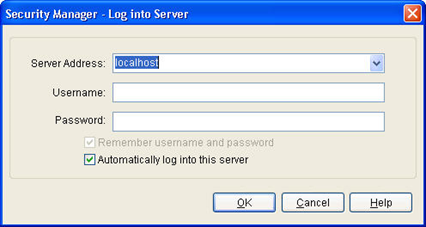
Enter the IP address or alias for the LoggerNet server (e.g., LocalHost), leave the User Name and Password fields blank, and press OK. A wizard is launched to help you set up an Administrator Account, which will be used for managing the security for the LoggerNet network. Follow the instructions on screen to set up the account. Once the setup is complete, the Security Manager will display its main window, and from here, you can begin setting up user accounts.
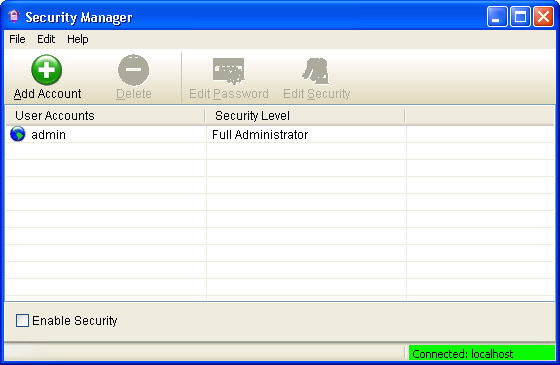
When setting up new accounts, one of five levels can be assigned to each user. Multiple accounts with Full Administrator rights can be set up, if desired. Only users with Full Administrator rights can open and make changes in the Security Manager (regardless of whether or not security is enabled).
Once the security accounts have been set up, select the Enable Security check box to turn on security for the LoggerNet server.