Custom Collection
Clicking the Custom button brings up the following dialog box. After making your selections, press Start Collection to collect the data.
NOTE: While retrieving data from the datalogger using Custom Collection, scheduled data collection will be suspended. The default data file names for custom collection are separate from the files for scheduled collection data and by default are placed in a Data directory under the LoggerNet directory.
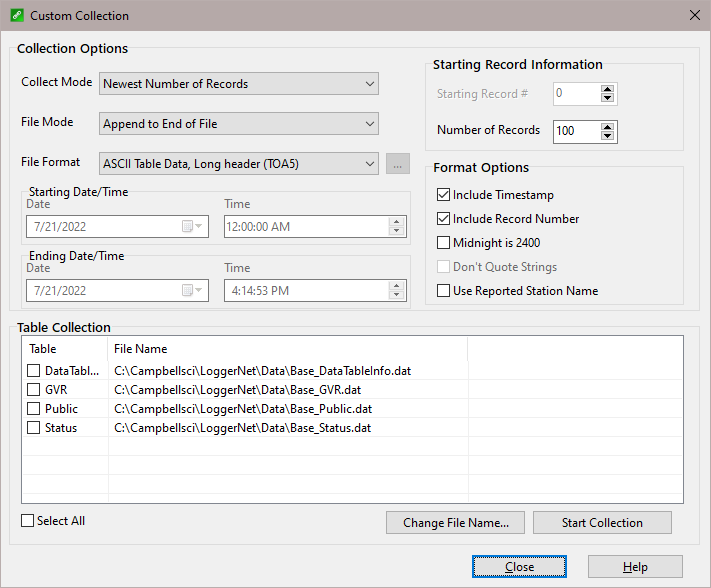
Collect Mode
Newest Number of Records - Retrieves a specific number of records from the selected tables by backing up the number of records entered in the Number of Records field and retrieving all data forward.
Specific Records - Allows you to specify a beginning record number and the number of records to collect after that record. The range of records to retrieve is specified by completing the Starting Record # and Number of Records fields.
Data Since Last Collection - Retrieves all uncollected records from the selected tables.
All the Data - Retrieves all records from the selected tables.
Data from Selected Date and Time - Allows you to specify a time frame for data collection. When this option is selected, the Starting Date/Time and Ending Date/Time fields will be enabled. (CR5000, CR9000, CR9000X, and CR200-series dataloggers do not support this collection option.)
File Mode
Append to End of File adds new data to the end of the existing data file.
Overwrite Existing File replaces the existing file with a newly created file.
Create New File leaves any existing files intact and creates a new file with a unique file name based on the time of data collection. For example, CR1000_Table1_2008_09_04_12_14_13.dat.
NOTE: When appending to a data file, LoggerNet will check to make sure that the existing data file header matches the new data that is to be appended to the file. If the header does not match, LoggerNet may back up the existing data file and then create a new data file.
File Format
NOTE: For most file formats, the browse button to the right of the field is enabled. Pressing this button opens a window which allows you to customize the data string for the output file.
ASCII Table Data, No Header - Data is stored in a comma separated format. No header information is included in the file.
TOACI1 - Data is stored in a comma separated format. Header information for each of the columns is included.
TOA5 - Data is stored in a comma separated format. Header information for each of the columns is included, along with field names and units of measure if they are available.
TOB1 (binary) - Data is stored in a binary format. Though this format saves disk storage space, it must be converted before it is usable in other programs.
Array Compatible CSV - Data is stored in a user-defined comma separated format. When this option is selected, the browse button to the right of the field is enabled. Pressing this button opens a window in which you customize the data string for the output file. This option can be used to produce output files from table data dataloggers that are similar to those created by mixed array dataloggers.
CSIXML - Data is stored in XML format with Campbell Scientific defined elements and attributes. For additional information, refer to the LoggerNet manual.
Starting Date/Time / Ending Date/Time
The fields in this group box are enabled only when the Collect Mode is Data from Selected Date and Time. To complete the Starting or Ending Date field, type in a date directly or click the arrow to the right of the field to display a calendar from which to choose a date. To complete the Starting or Ending Time field, type in the time directly or use the arrows to the right of the field to increase or decrease the highlighted time value.
Starting Record Information
The fields in this group box are enabled only when the Collect Mode is Newest Number of Records or Specific Records.
The Starting Record # field is used to enter the first record to be collected when the Specific Records option is chosen.
The Number of Records field allows you to specify a fixed number of records to be collected from a table. When the Newest Number of Records option is chosen, LoggerNet counts back the number of records specified from the most recent record and collects all data forward. When the Specific Records option is chosen, data collection begins with the Starting Record # and ends when the specified number of records has been collected.
Format Options
Select the Include Timestamp check box to have timestamps included in your data. If the check box is not selected, timestamps will not be included.
Select the Include Record Number check box to have record numbers included in your data. If the check box is not selected, record numbers will not be included.
When Midnight is 2400 is selected, the timestamp will reflect midnight as the current date with 2400 for the Hour/Minutes. Otherwise, the timestamp will reflect midnight as the next day's date, with the Hours/Minutes as 0000.
When the Don’t Quote Strings check box is selected, strings in the data will not be surrounded by quotation marks. If the check box is not selected, strings will be surrounded by quotation marks. (Note this option is only available for the ASCII Table Data, No Header Output Format.)
Enabling the Use Reported Station Name check box will cause the station name from the Status Table to be used in the header of the data files. If this check box is not enabled, the network map station name will be used. (Note that this check box affects only the header of the data files. It has no effect on the filenames.)
Table Collection
To mark the tables that will be collected, enable the Select All check box or choose the check boxes for tables individually from the list. Default names are provided in the File Name field. A file name can be changed by placing your cursor within the desired field and pressing the Change File Name button.