Parameter Dialog Box
The Parameter dialog box will appear when an instruction is added that has one or more parameters or when the cursor is placed on an existing instruction and the right mouse button is pressed. This dialog box contains a field for each of the parameters in the instruction. Edit these fields as necessary and then press Insert to paste the instruction into the program.
Below is an example of the Parameter dialog box for the differential voltage instruction (VoltDiff).
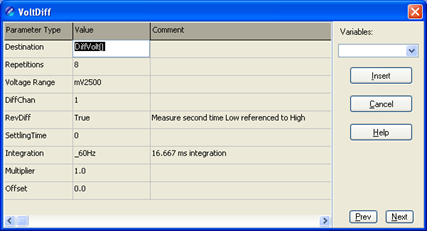
The Prev (Previous) and Next buttons can be used to move to the next (or previous) instruction with the parameter entry box opened.
Short Cuts for Editing the Parameters
Right-clicking or pressing F2 on a parameter that uses a variable as an input type will display a list of variables that have been defined in the program. A sample list is shown below.
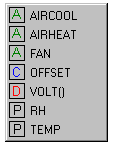
The variable list is sorted by variable type and then alphabetically by name. In the list above, the first green A denotes that the variable AIRCOOL is set up as an Alias.
Constants are listed with a blue C, Dimensioned variables are listed with a red D, and Public variables are listed with a black P.
At any time you can press F10 to bring up the list of variables, regardless of the input type for the selected parameter. Also, defined variables can be selected from the Variables drop-down list box at the upper right of the Parameter dialog box.
Pressing F9 at any time will also bring up a list of variables. However, when a variable is chosen from the list brought up by F9, it will simply be inserted at the cursor without overwriting anything.
Right-clicking or pressing F2 on a parameter that has a finite number of valid entries will bring up a list of those available options.
Right-clicking or pressing F2 on a parameter that does not fall within the two categories above will bring up help for that parameter.
Pressing F1 with any parameter selected will bring up help for that parameter along with a list of possible options where appropriate.
Changing Default Parameters Values for an Instruction
Each instruction offers default values for each parameter. For instance, in the Parameter box above, the default for the Range is mV5000. If you wanted to edit this so that each time you inserted the VoltDiff instruction the Range value defaulted to mV1000, you would highlight the instruction in the Instruction Panel, select Instruction > Edit Instruction Defaults from the menu, and make the change in the resulting dialog box.