Editor Preferences
This option sets up the appearance options for the text instructions and the behavior of pop-up hints.
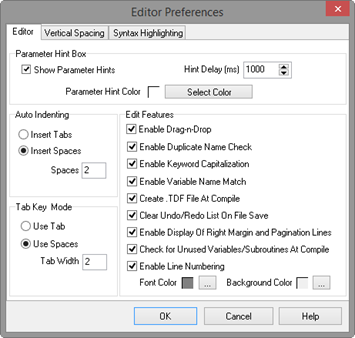
The Editor tab allows the user to toggle on or off the pop-up hints for parameters in instructions, set the amount of time the cursor must hover over the instruction before the pop-up hint appears, and the background color of the pop-up hint. This is also used to choose whether CRBasic automatic instruction indenting indents using tabs or spaces, and set the number of spaces if that option is chosen. Other options relating to the use of the tab key, capitalization, name checking, and line numbers are also available. Press the Help button for more information.
The Vertical Spacing tab is used to set up the rules for the CRBasic Editor's Rebuild Indentation function (Edit > Rebuild Indentation). You can control whether blank lines are inserted before or after certain instructions, and how the CRBasic Editor will process multiple blank lines in the program. If Do Not Insert or Remove Any Blank Lines is selected, all other fields on this tab will be disabled. If either of the other two line options is chosen, the remaining fields will be available for the user to customize as desired.

The Syntax Highlighting tab sets up the appearance of different text elements in the program using different font styles and colors. You can customize the appearance of the text by giving normal text, keywords, comments, operators, numbers, strings, and parentheses each a different font style and color to make the program easier to read and edit. Text colors and styles can be disabled by clearing the Enable Syntax Highlighting check box.
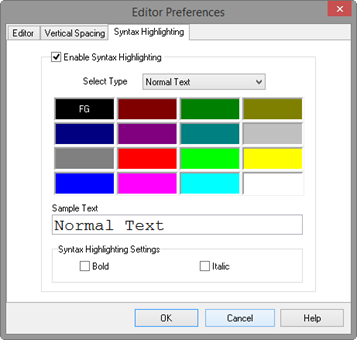
Note that if special formatting (font style, color) is assigned to Matched Parentheses, when your cursor is on an opening or closing parenthesis it will be highlighted with the formatting, and the "other half" of that parenthesis will also be highlighted. When your cursor moves off the parenthesis, the formatting will return to normal text.