File Control
This option is used to manipulate the files stored on a CRBasic-programmed datalogger (excluding the CR200).
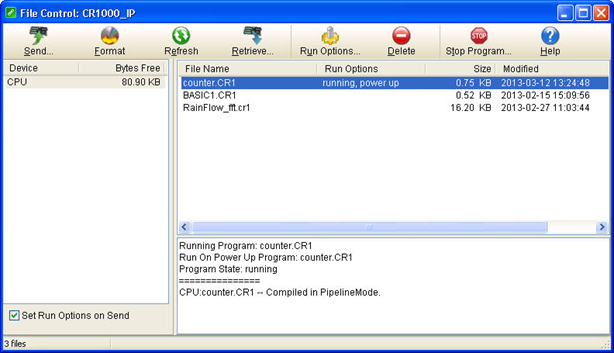
The Devices (e.g., CPU, CRD, USB, CS9,
NOTE: For GRANITE Data Logger Modules, an SC115 is specified as CS9 and USB refers to the integrated USB Host. For all other data loggers, USB refers to the SC115.
The File Name field provides the name of the file stored on the device. The Run Options field notes whether the file is set to Run Now (running), Run On Power-up (power up), or both Run Now and Run On Power-up (running, power up). The Size indicates the size of the file. Modified provides the date the file was last modified. The Attributes field indicates whether the file can be read from (R) and/or written to (W).
At the bottom of the right-hand side of the window is a summary box that indicates the Running Program, the Run On Power Up Program, the current Program State (running, stopped, or no program), and the last compile results.
File Control Options
Send - Displays a standard file dialog box from which to choose a file to be sent to the selected device. If the Set Run Options on Send check box is selected, you will be asked to specify the Run Options for the file being sent as described below under Run Options.
Format - Formats the selected device. This option should be used with caution, since all files stored on the device will be lost.
Refresh - Press this button to update the devices and list of files for the datalogger. If a change is made via the keyboard or under program control, it will not be reflected in this window unless the screen is refreshed.
Retrieve - Highlight a file in the File Name field and press this button to display a standard file dialog box in which you can enter a directory and file name for the retrieved file.
NOTE: File Control should not be used to retrieve data from a CF card created using the CardOut instruction. Using File Control to retrieve the data file can result in a corrupted data file.
Run Options - This button allows you to set the run options of a program file. Select the file from the File Name field, and press Run Options. From the resulting dialog box, select the run options.
Run Now
The Run Now run options are different for the different datalogger types.
CR1000X/CR6-series/CR300-series/CR350-series/GRANITE 6/GRANITE 9/GRANITE 10/CR1000/CR3000/CR800-series Datalogger Run Now Options
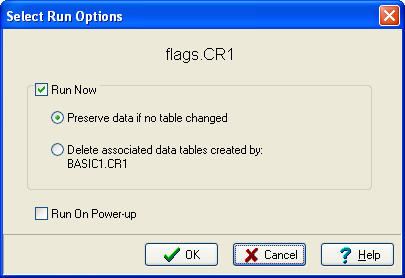
When Run Now is checked, the program is compiled and run in the datalogger. You may choose to preserve existing data tables on the datalogger's CPU if there has been no change to the data tables (Preserve data if no table changed) or to delete data tables on the CPU that have the same name as tables declared in the new program (Delete associated data tables).
WARNING: Neither of these options affects existing data files on a card if one is being used. If a data table exists on the card that has the same name as one being output with the new program, the message will be returned "Data on Card is from a different program or corrupted". Data will not be written to the card until the existing table is deleted. Data tables on the card that have different names than those declared in the new program will be maintained and will not affect card data storage when the new program is running.
When using the Preserve data if no table changed option, existing data and data table structures are retained unless one of the following occurs:
Data table name(s) change
Data interval or offset change
Number of fields per record change
Number of bytes per field change
Number of records per table (table size) change
Field type, size, name, or position change
To summarize, any change in data table structure will delete all tables on the datalogger's CPU, regardless of whether or not the Preserve Data option was chosen. If the Preserve Data option was chosen but the datalogger was unable to retain the existing data, the following message will appear in the Compile Results: Warning: Internal Data Storage Memory was re-initialized.
CR9000(X)/CR5000 Datalogger Run Now Options
The Run Now options and behavior for the CR9000(X) and CR5000 dataloggers are different from the CR1000X, CR6-series, CR300-series, CR350-series, GRANITE 6, GRANITE 9, GRANITE 10, CR1000, CR3000, and CR800-series dataloggers. Below is a dialog box for a CR5000 datalogger.
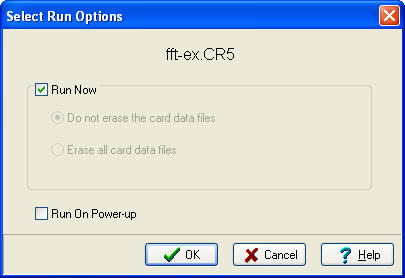
When Run Now is checked, the program is compiled and run in the datalogger. All data tables on the CPU are erased. You have the option of whether or not to erase data files stored on a card.
Run On Power-up
The file will be sent with the Run On Power-up attribute set. The program will be run if the datalogger loses power and then powers back up.
Run Always
Run Now and Run On Power-up can both be selected. This sets the program's file attribute in the datalogger as Run Always. The program will be compiled and run immediately and it will also be the program that runs if the datalogger is powered down and powered back up.
Restarting a Stopped Program
Pressing Run Options to restart a stopped program in a CR1000X, CR6-series, CR300-series, CR350-series, GRANITE 6, GRANITE 9, GRANITE 10, CR1000, CR3000, or CR800-series datalogger displays a different dialog box. From the dialog box you can choose Restart Program to begin running the selected program immediately. You can also select an option button to determine whether or not the data tables previously created by the program are erased or retained.
NOTE: CR1000X, CR6-series, CR300-series, CR350-series, GRANITE 6, GRANITE 9, GRANITE 10, CR1000, CR3000, and CR800-series dataloggers -- A program marked as "Run on power up" can be disabled when power is first applied to the datalogger by pressing and holding the DEL key.
Delete - Highlight a file from the list of files and press Delete to erase the file from datalogger memory.
Stop Program - Press this button to stop the execution of the program currently running in the datalogger. Select the option to stop the program and retain the data files, or to stop the program and delete data files. The option to retain or delete data files includes those in internal datalogger memory and those on a card written by the CardOut instruction. In most cases, data written to a card using the TableFile instruction will not be erased. However, when writing data to the card using the TableFile instruction with option 64, the file currently in use will be erased while other files will be maintained.
If you select the option to Delete Data, you also have the option of whether or not to clear the Run On Power-up option for the file. Select the check box to clear the Run On Power-up option. Clear the check box to leave the Run On Power-up option of the file unchanged.
If a CR1000X, CR6-series, CR300-series, CR350-series, GRANITE 6, GRANITE 9, GRANITE 10, CR1000, CR3000, or CR800-series program has been stopped, you can use the Run Options button to restart it. If data files were not deleted when the program was stopped, you will once again be able to choose whether to retain or erase the data files. Instead of restarting the stopped program, you can choose a new program file to run by selecting a different file in the File Name field before pressing Run Options.
Right Click Menu Options
When a file name is selected, pressing the right mouse button displays a menu with the Retrieve File, Delete File, Rename File, View File (retrieves the file and opens it in the CRBasic Editor), and Run Options choices.
NOTE: The View File option can be used to edit a program on your datalogger. After making the desired edits and saving it to your computer, you will need to send the edited program to the datalogger.
