Database Selection
The Database Data Source Properties dialog box comes up automatically the first time QuickReports is opened. At other times, it can be opened from the File | Select Database menu item or by double-clicking on the database portion of the status bar at the bottom of the QuickReports window. This dialog box is used to set up the database source for your report.
Source Name
Designates the name that will be used for the database in QuickReports.
Type
The type of database. Choose a type from the drop-down list.
The following database types are supported in QuickReports:
- SQL Server Compact
- SQL Server
- MySQL
- Oracle
- PostgreSQL
The remaining information changes depending on the database type as described below:
SQL Server Compact
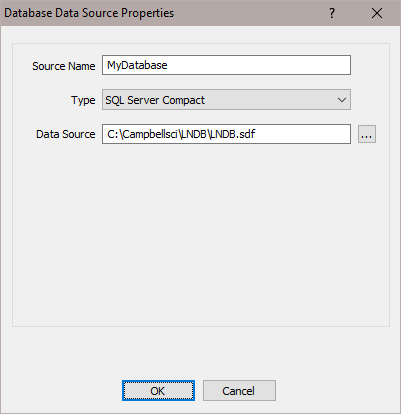
The only additional information needed for a SQL Server Compact database source is the database file to be used. Type in the name directly or press the button to the right of the field to browse to the database file.
SQL Server
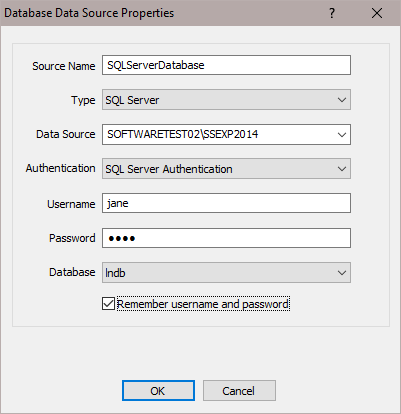
To select a SQL Server database source you must select a SQL Server instance. The list of published SQL Server instances is shown in the Data Source combo box. You can also type into the Data Source combo box, because the desired server might not be published. Windows Authentication or SQL Server Authentication can be selected. Windows Authentication does not require a username and password, but rather uses Windows user accounts to authenticate valid users. SQL Server Authentication requires a login ID and Password and is independent of Windows user accounts. You can select the <default> database or select a specific database from the Database combo box.
The Remember username and password checkbox can be selected to save the username and password. If this check box is not selected and you are using SQL Server Authentication, you will be required to enter the username and password each time a report is opened that uses this database source.
MySQL
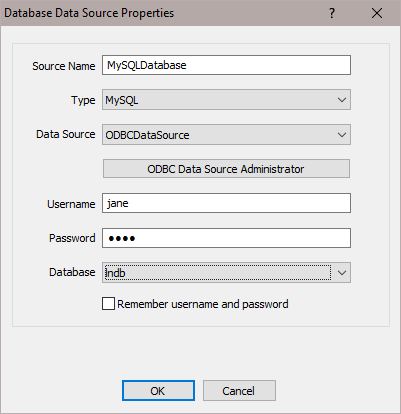
The MySQL connection is an ODBC connection. You must use the Windows ODBC Data Source Administrator to configure the database connection. Currently only system data sources are supported and show in the Data Source combo box. The Username and Password may be optional. They will be set to blank in the connection string. It has been found that when set to blank, the login id and password configured in the ODBC Data Source Administrator are used. You can select the <default> database (default as configured in the data source) or select a different database.
The Remember username and password checkbox can be selected to save the username and password. If this check box is not selected and the username and password were not configured in the ODBC Data Source Administrator, you will be required to enter the username and password each time a report is opened that uses this database source.
Oracle
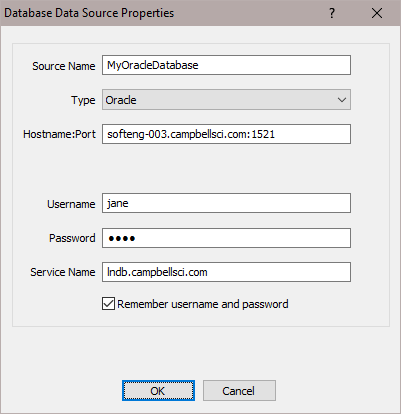
To select an Oracle database source you must enter a Hostname:Port, Username, Password, and Service Name. The default Oracle port is 1521.
The Remember username and password checkbox can be selected to save the username and password. If this check box is not selected, you will be required to enter the username and password each time a report is opened that uses this database source.
PostgreSQL
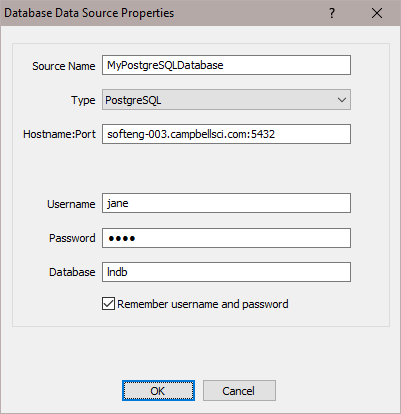
To select a PostgreSQl database source you must enter a Hostname:Port, Username, Password, and Database. The default PostgreSQL port is 5432.
The Remember username and password checkbox can be selected to save the username and password. If this check box is not selected, you will be required to enter the username and password each time a report is opened that uses this database source.