SDI-12 transparent mode
System operators can manually interrogate and enter settings in probes using transparent mode. Transparent mode is useful in troubleshooting SDI-12 systems because it allows direct communication with probes. Data logger security may need to be unlocked before activating the transparent mode.
Transparent mode is entered while the computer is communicating with the data logger through a terminal emulator program. It is accessed through Campbell Scientific data logger support software or other terminal emulator programs. Data logger keyboards and displays cannot be used.
The terminal emulator is accessed by navigating to the Tools list in PC400 or the Datalogger list in the Connect screen of LoggerNet.
Data loggers from other manufacturers will also have a transparent mode. Refer to those manuals on how to use their transparent mode.
The following examples show how to enter transparent mode and change the SDI-12 address of an SDI-12 sensor. The steps listed are used with most Campbell Scientific data loggers.
This example was done with a CR1000X, but the steps are only slightly different for CR6, CR3000, CR800-series, CR300-series, and CR1000 data loggers.
-
Connect an SDI-12 sensor to the CR1000X.
-
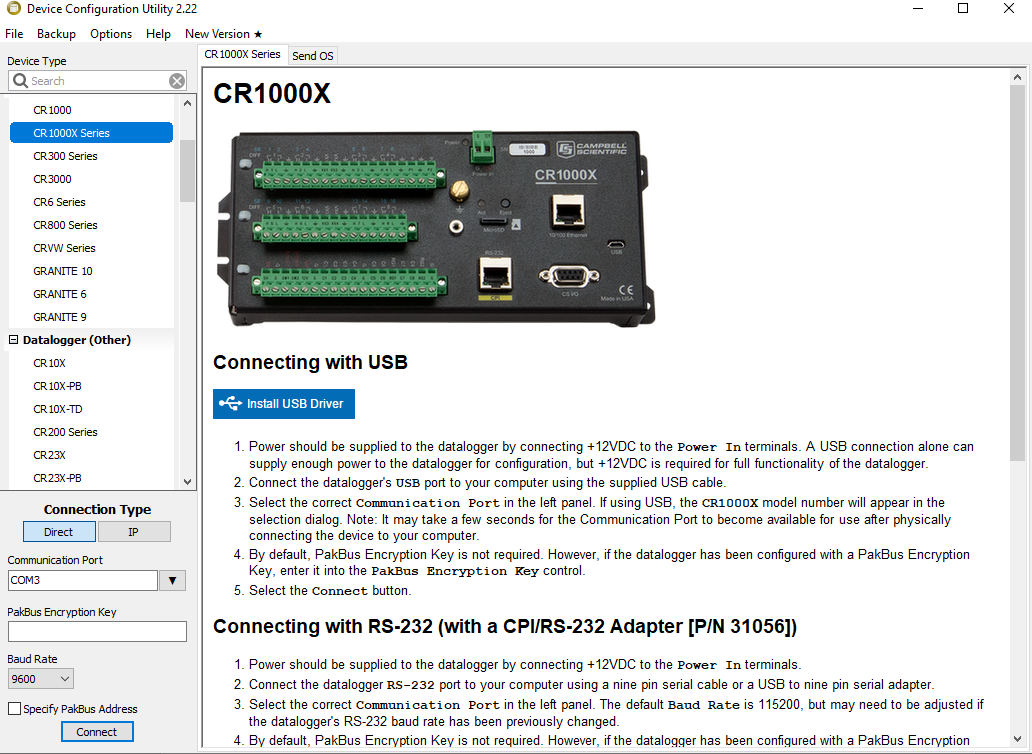
Open Device Configuration utility.
-
Under Device Type, type the data logger model and double-click on the model type. This example uses a CR1000X directly connected to the computer USB port.
-
Select the correct Communication Port and click Connect.
-
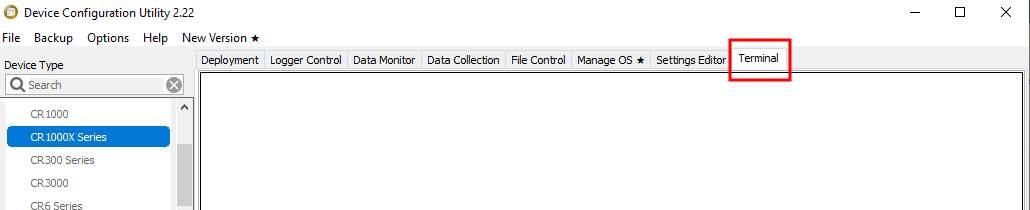
Click the Terminal tab.
-
Select All Caps Mode.

-
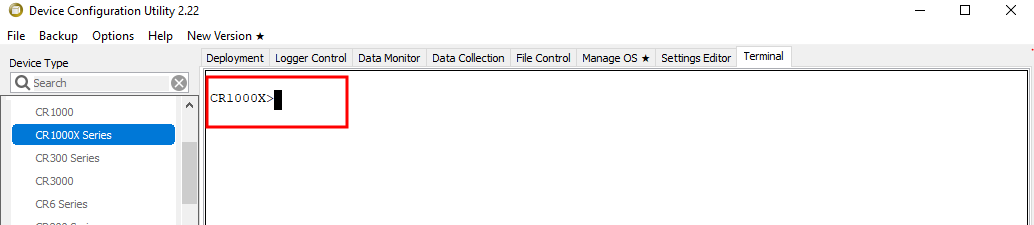
Press Enter until the data logger responds with the data logger (CR1000X>) prompt.
-
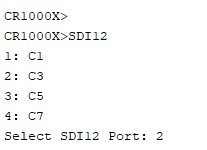
Type SDI12 and press Enter.
-
At the Select SDI12 Port prompt, type the number corresponding to the control port where the sensor is connected and press Enter. In this example, the sensor is connected to C3. The response Entering SDI12 Terminal indicates the sensor is ready to accept SDI-12 commands.
-
To query the sensor for its current SDI-12 address, type ?! and press Enter. The sensor responds with its SDI-12 address. If no characters are typed within 60 seconds, the mode is exited. In that case, simply type SDI12 again, press Enter, and type the correct control port number when prompted.

-
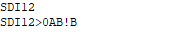
To change the SDI-12 address, type aAb!, where a is the current address from the previous step and b is the new address. Press Enter. The sensor changes its address and responds with the new address. In the following example, the sensor address is changed from 0 to B.
-
To exit SDI-12 transparent mode, click Close Terminal.
The transparent mode for the CR6, CR3000, CR800-series, CR300-series, and CR1000 data loggers is similar to that shown for the CR1000X.
 SDI-12 Sensors | Transparent Mode