Terminal mode
You can use the terminal mode for troubleshooting and configuration. Contacting Campbell Scientific support personnel is recommended before using this feature. The two most common ways to access the terminal mode are within Device Configuration Utility and using the Connect Screen of LoggerNet. When using the terminal mode in LoggerNet, you can make the connection to a remote station over a radio link without having to travel to the site.
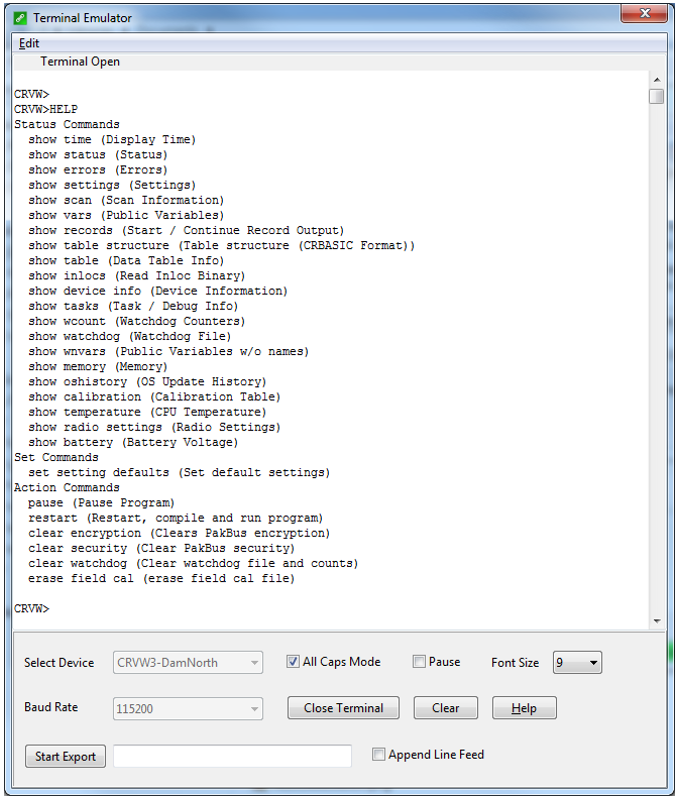
The pause instruction temporarily stops the program. However, after 2 hours, the program automatically resumes and a watchdog.txt file is written, containing the following text:
“Watchdog timer Run Program Service triggered.”
This watchdog.txt file need not cause concern; it simply indicates the program automatically resumed.
Using Device Configuration Utility
-
In Device Configuration Utility, connect to the and choose the Terminal tab.
-
Click in the screen and press Enter several times. You should get the CRVW> terminal prompt.
-
Type help and press Enter. A list of possible terminal commands will be given.
-
Type a command name, along with any required arguments, and press Enter.
NOTE:If you wait too long between entering commands, you will need to press Enter several times again to restore the terminal session.
-
When finished with the terminal session, click Close Terminal.
Using LoggerNet
-
In the LoggerNet Connect Screen, connect to the .
-
Select Datalogger menu > Terminal Emulator….
-
Click Open Terminal.
-
Click in the screen and press Enter several times. You should get the CRVW> terminal prompt.
-
Type help and press Enter. A list of possible terminal commands will be given.
-
Type a command name, along with any required arguments, and press Enter.
NOTE:If you wait too long between entering commands, you will need to press Enter several times again to restore the terminal session.
-
When finished with the terminal session, click Close Terminal.