Updating the operating system and firmware
Campbell Scientific updates data logger and CELL200 series operating systems (OS) as new features are developed and bugs fixed. It is recommended that before deploying instruments, you check operating system versions and update them as needed. This section applies to updating the CELL200 series module operating system. Refer to your data logger manual for information on updating its OS.
The CELL200 series itself uses two operating systems. The first is the Campbell Scientific CELL200 series operating system. We will refer to that as the CELL200 series OS. The second is contained in the cellular radio module; we will refer to that one as the module firmware. One or both may need to be updated from time to time.
To prevent data loss, collect all data from the data logger before proceeding to update the data logger operating system and cellular module firmware.
Updating the module firmware is done over the air (OTA), even with a direct USB connection to the data logger. Therefore, it can take from 5 minutes to several hours depending on signal strength between the cell tower and the CELL200 series, cellular network congestion, and OTA server availability. OTA updates use some of the cellular device data plan for each attempt. Care should be taken to plan accordingly to avoid cellular data plan overages.
Using the web interface (cell.linktodevice.com)
Instructions in this section assume that the steps in Pre-installation have been completed. Cellular service must be setup before web access using cell.linktodevice.com  is available.
This section applies to modules set up in serial server mode with a public static IP account when connecting over the Internet using the cellular interface.
This section also applies to all modules when connecting via USB.
-
Connect the cellular antenna if it is not already connected. When using a
 MIMO Multiple-input, multiple-output antenna antenna with multiple cellular connections, connect the primary cable to Primary, Primary Antenna, or Antenna and the secondary to Diversity or Diversity Antenna (depending on the label). If the cables are not marked in this way, they can be connected to either antenna port.
 -
(Option 1, local connection) Connect a USB cable between your module and computer.
-
Open a web browser and go to: cell.linktodevice.com
.TIP:If your computer does not respond to the DNS server correctly, browse to 192.168.86.1.
-
- (Option 2, remote connection) No additional setup for modules connecting remotely.
- Open a web browser and enter the module static IP address.
-
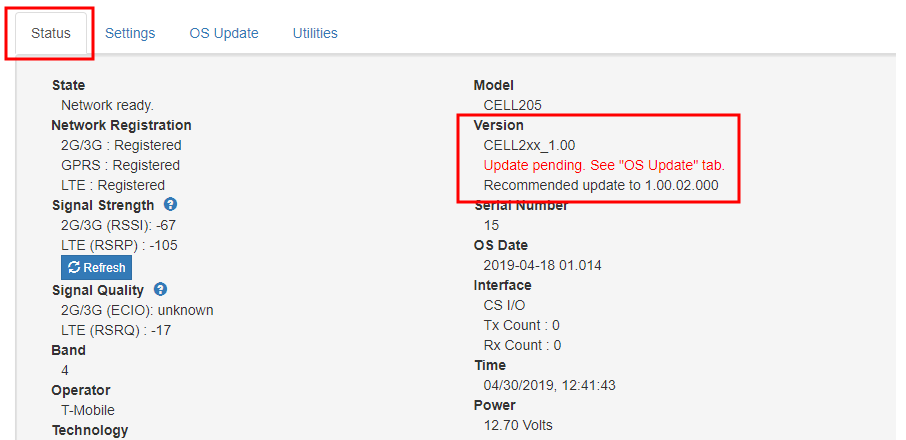
Every 14 days, the module automatically checks for a CELL200 series OS update. When a new OS is available you will see a red notification in the Version field of the Status Tab.
-
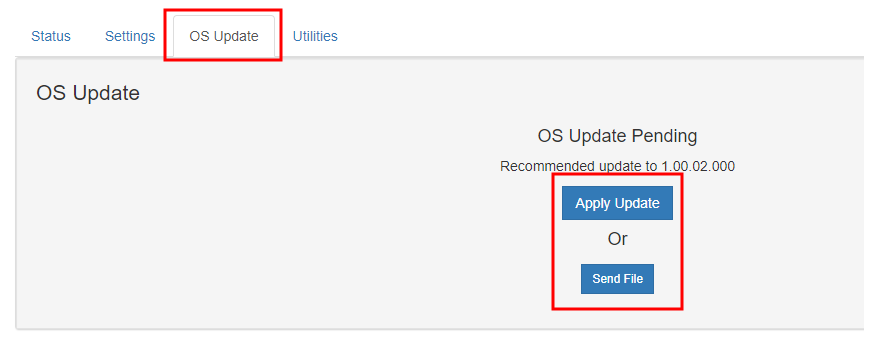
Select the OS Update Tab. Clicking the Apply Update button will retrieve the CELL200 series OS from the Campbell Scientific website and begin the update process. If you already downloaded the OS from the Campbell Scientific website to you computer you can click the Send File button and follow the prompts.
-
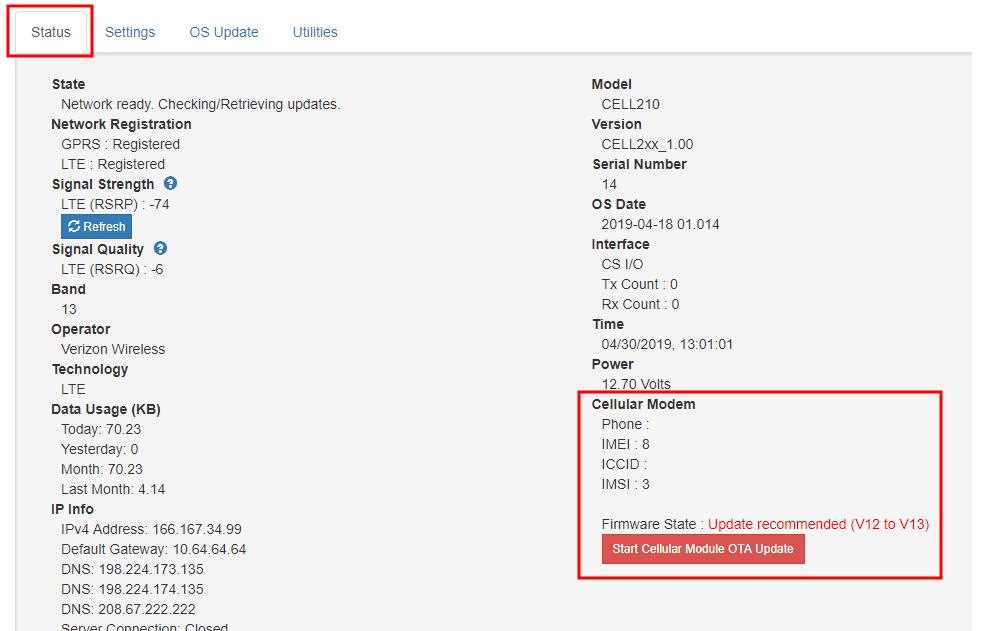
When new module firmware is available you will see a red notification in the Celllar Modem field of the Status Tab. To begin the update process, click the red Start Cellular Module OTA Update button.
Using Device Configuration Utility
This section applies to modules set up in integrated PPP mode which requires data logger operating system 03.00 or later for the CR1000X, 09.00 or greater for the CR6 series, and 08.00 or later for the CR300 series.
-
Connect the cellular antenna if it is not already connected. When using a
MIMO Multiple-input, multiple-output antenna antenna with multiple cellular connections, connect the primary cable to Primary, Primary Antenna, or Antenna and the secondary to Diversity or Diversity Antenna (depending on the label). If the cables are not marked in this way, they can be connected to either antenna port. -
Connect your data logger to the CELL200-series module RS-232 or CS I/O port. See Wiring and connections.
-
If not connecting through CS I/O, provide power to the CELL200 series.
-
Connect a USB cable between your data logger and computer.
-
Connect to your data logger by using Device Configuration Utility.
-
When a new CELL200 series OS is available, in the Settings Editor on the Cellular Tab you will see a field called Cellular OS Update Pending. This field does not appear unless an update is available. Select Apply Update to begin the process, or Ignore to update at another time.
-
Apply to save your changes.
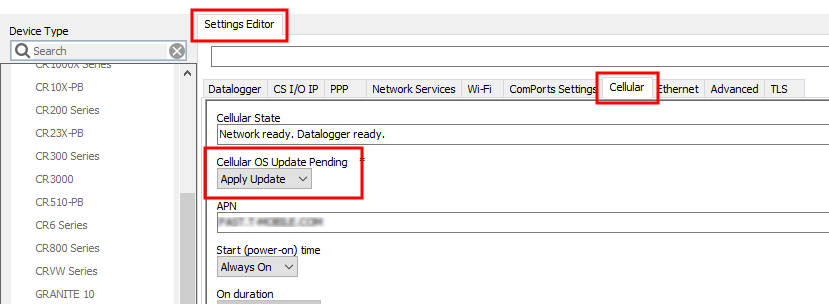
-
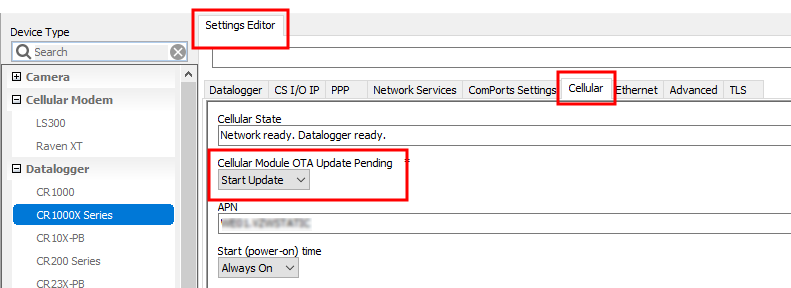
When new module firmware is available, in the Settings Editor on the Cellular Tab you will see a field called Cellular Module OTA Update Pending. This field does not appear unless an update is available. Select Start Update to begin the process, or Ignore to update at another time.
-
Apply to save your changes.