Configure CELL200 series
To set up the CELL200 series in serial server/client mode:
-
Connect a USB cable between your module and computer.
-
Connect the cellular antenna if it is not already connected. When using a
 MIMO Multiple-input, multiple-output antenna antenna with multiple cellular connections, connect the primary cable to Primary, Primary Antenna, or Antenna and the secondary to Diversity or Diversity Antenna (depending on the label). If the cables are not marked in this way, they can be connected to either antenna port.
 -
Open a web browser and go to: cell.linktodevice.com
 .TIP:
.TIP:If this doesn't work browse to 192.168.86.1.
-
On the Settings tab, enter the APN provided by your cellular provider.
-
On the General tab, set Mode to Serial Server/Client.
-
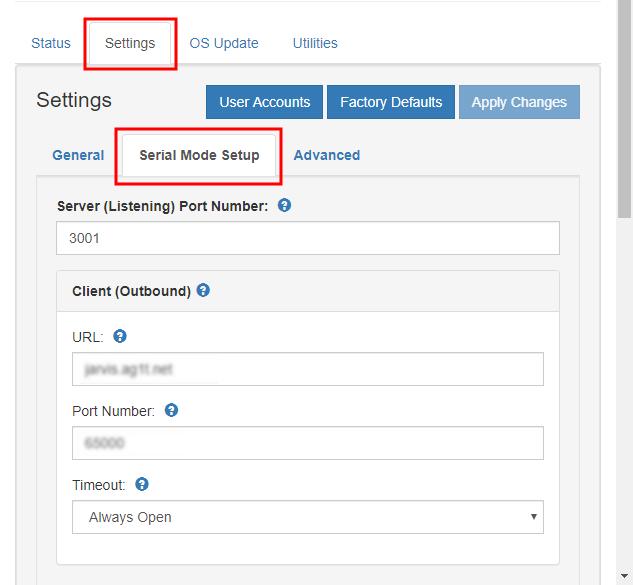
Select the Serial Mode Setup tab.
-
Set Server (Listening) Port Number. Default is 3001. This is entered along with the IP address as part of the LoggerNet configuration.
-
Enter the URL and Port Number that the module will connect with.
-
(Optional) Select Always Open for the Timeout .
-
(Optional) In this mode, an Automated Power Schedule can be setup to save on battery life or on cellular charges. Go to the Settings then Serial Mode Setup tab. Enter a Start (power-on) Time, On duration, and Repeat cycle.
The modem automatically turns off at midnight. It turns on at the Start (power-on) Time for the On duration. It then turns on again every Repeat cycle until midnight, at which point it will turn off.
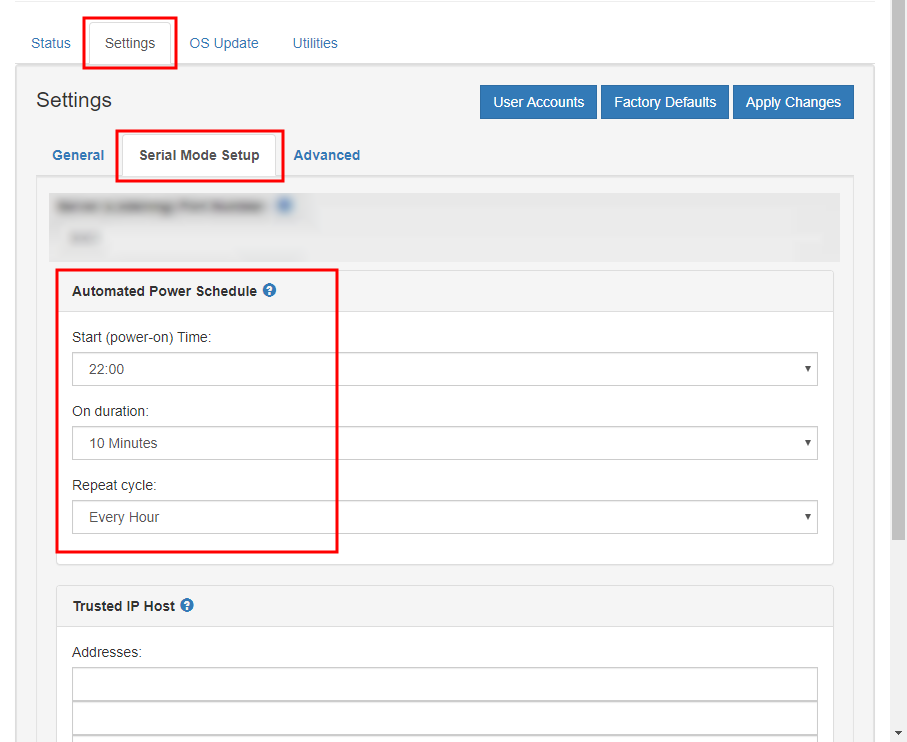
For example: With the following settings of Start (power-on) Time of 22:00, On Duration of 10 minutes, and Repeat Cycle of Every Hour the cellular module will turn on for ten minutes only twice each day. It will turn on at 10:00 pm and 11:00 pm. It will not turn on at midnight since it is powered off at the start of the next day.
-
(Optional) By default, the CELL200 series will accept incoming communications from any IP address. This can be a security risk. You may specify up to four IP addresses, with wild cards, to limit connections to only those trusted sources. Use an asterisk (*) as a wild card. For example, a setting of 166.22.*.* would allow connections from devices that have IP addresses starting with 166.22. Both IPv4 and IPv6 addresses are supported.
CAUTION:Only set a Trusted IP address if you are familiar with their use. Consult your IT department or Campbell Scientific for assistance.
NOTE:This setting does not affect outbound connections, only incoming connections.
Staying on the Settings > Serial Mode Setup tab, enter your trusted IP addresses, one per line, in the Trusted IP Host Addresses box.