Viewing status information
The Status table contains data about the health of an asset including battery and cellular information. This information can be viewed in several Cloud apps.
Viewing status information in Assets summary
Status table information can be displayed in the Assets app.
-
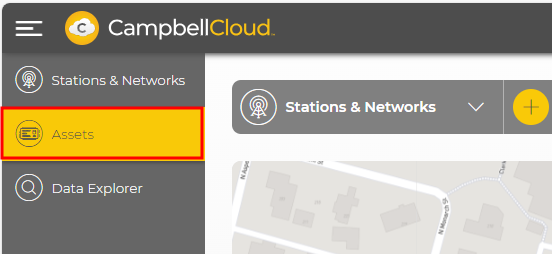
Select Assets from the applications menu.
-
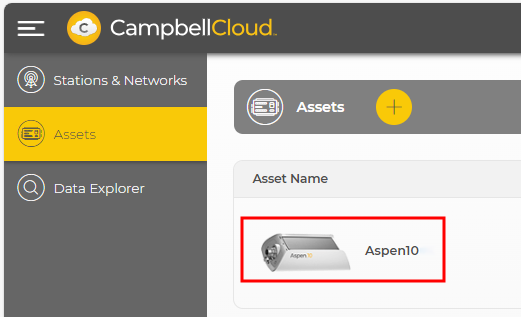
Select the asset.
-
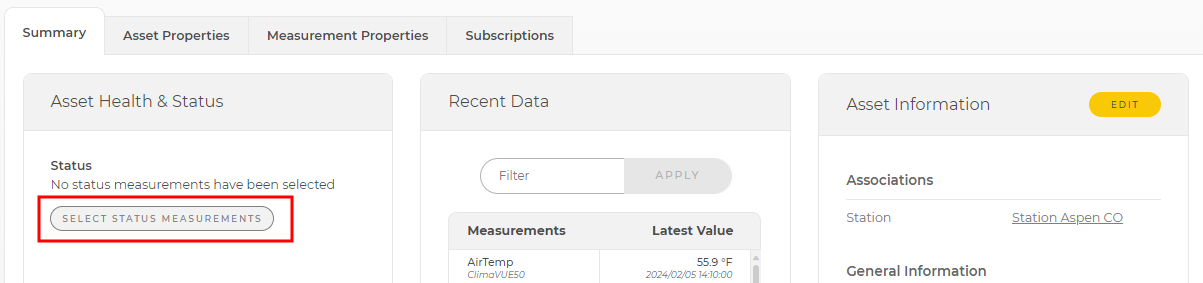
On the Summary tab, the first column is labeled Asset Health and Status. Currently, no status measurements are being displayed. Click SELECT STATUS MEASUREMENTS.
-
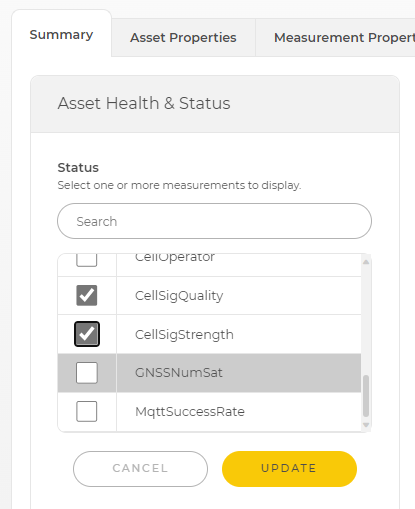
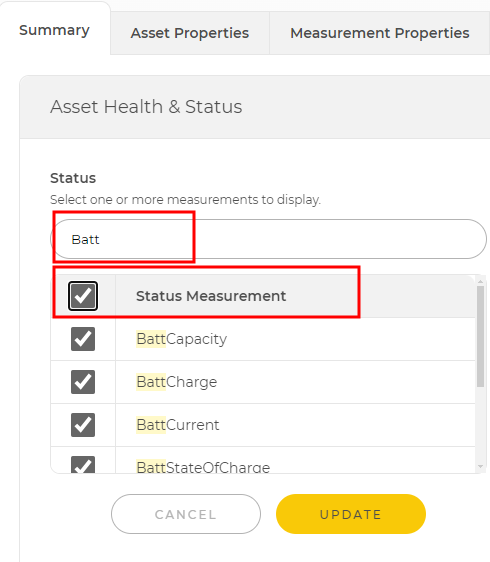
Every field in the status table is shown. Select the fields you want to have displayed on the summary tab by clicking the box to the left of each measurement. Click Status Measurement at the top of the list to select all status measurements. Use the Filter box at the top to filter the list of status measurements. With an active filter, clicking Status Measurement will select only those measurements in the current filtered list. After selecting the desired status measurements, click UPDATE to save changes.
-
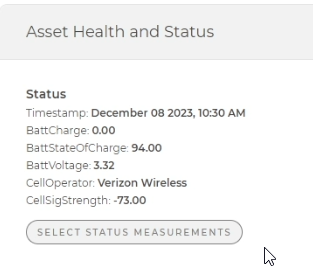
The selected status measurements are shown. Add or remove status measurements at any time by clicking SELECT STATUS MEASUREMENTS again.
Viewing status information in Data Explorer
Status table information can also be displayed in Data Explorer.
-
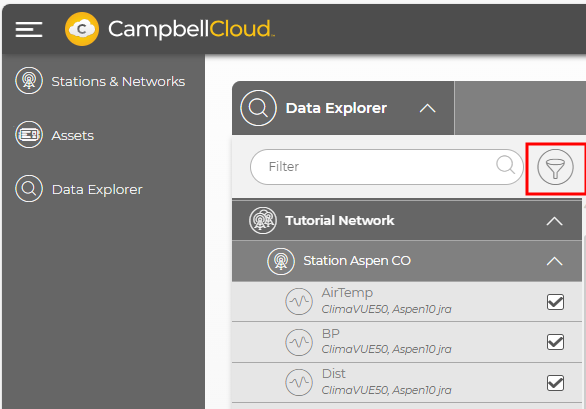
Select Data Explorer from the applications menu and then select the network and station to display. In this case, Tutorial Network, followed by Station Aspen CO. To view Status data, click the funnel next to the network name.
-
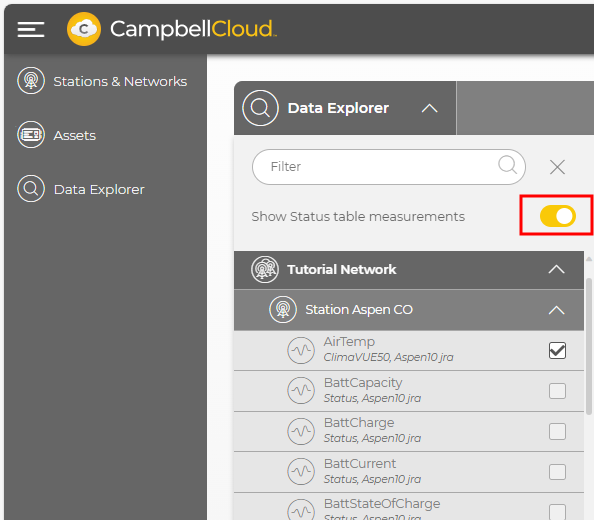
Click the toggle switch next to Show Status table measurements to enable viewing Status measurements. A yellow switch indicates that Status table measurements are included in the list. Select which Status table measurements to display by clicking the check box next to the fields you want to view.
 NOTE:
NOTE:Up to ten sensor and status measurements at a time may be displayed in Data Explorer.
-
Click APPLY.
-
In a Data Explorer table, columns for the Status table information are added to the right of sensor measurements.
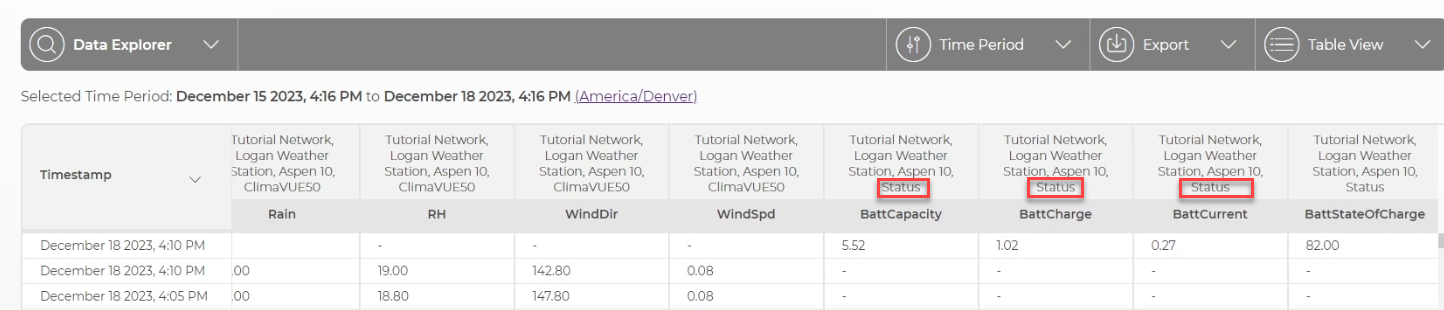 NOTE:
NOTE:Status measurements are often taken at different times than sensor measurements. In Table view you will notice what appear to be duplicate timestamps and missing measurements. These are neither; it is the nature of showing two time intervals in the same table.
-
Toggle Show status table measurements again to remove Status table measurements from table view.
