Adding an asset in the Assets app
A  Data source An asset that sends data to CampbellCloud. This includes data loggers and the Aspen 10 edge device. is provided through assets
-
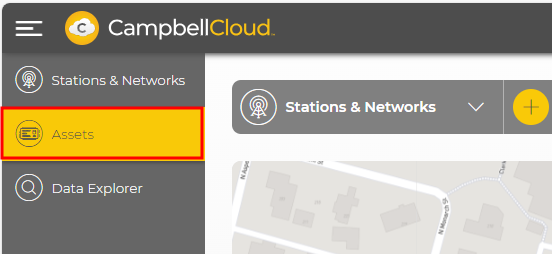
On the CampbellCloud home screen, select Assets from the application menu.
-
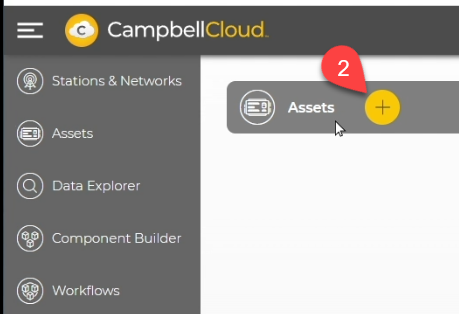
Click the plus symbol.
-
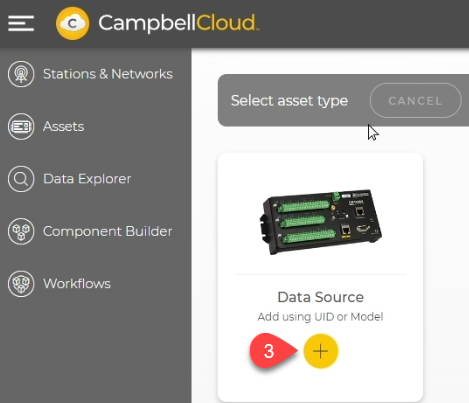
Click the plus symbol below Data Source.
-
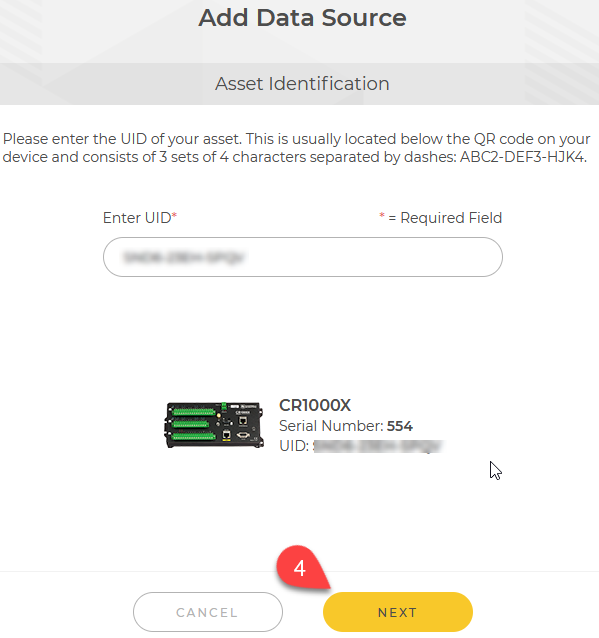
Enter the
UID Unique identifier number of the asset. This UID number can either be found on the QR code sticker shipped on the data logger or within the Cloud Connection tab in Device Configuration Utility.CampbellCloud verifies that the asset has not already been added to another network. Click NEXT.
NOTE:If the Campbell Cloud tab does not appear, make sure Device Configuration Utility and the data logger operating system is up to date.
-
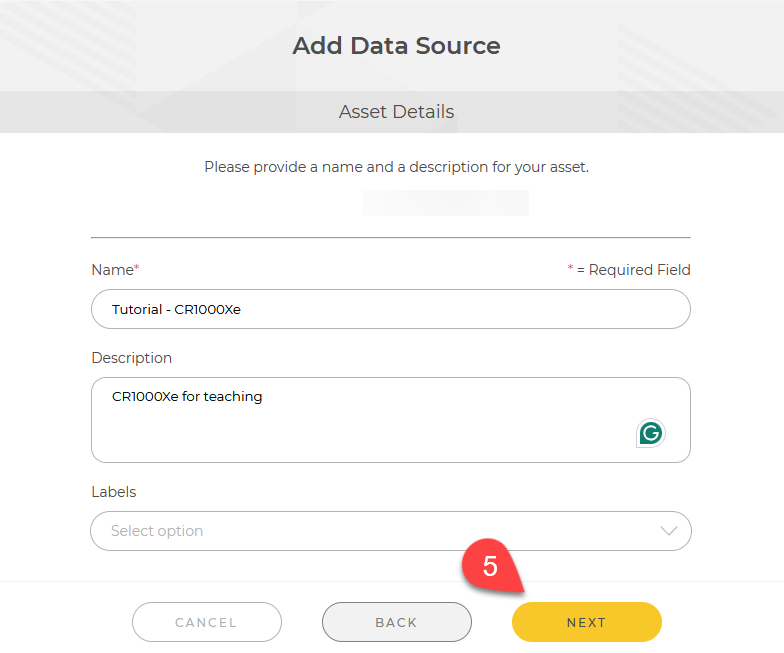
Enter a Name and optional Description for the asset. Click NEXT.
-
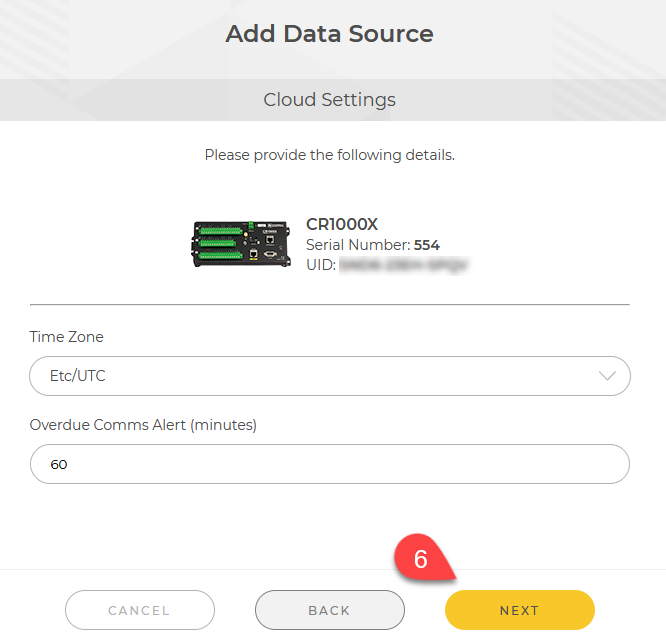
Set the preferred Time Zone and Overdue Comms Alert (minutes). Click NEXT.
NOTE:This is the time zone that the data logger is on, not the time zone that you would like to see. Failure to set this to the correct time zone will cause the data ingested to have an incorrect timestamp in CampbellCloud.
 NOTE:
NOTE:CampbellCloud automatically adjusts data timestamps for daylight savings in applicable time zones.
-
When clocks "fall back" one hour, timestamps for the repeated hour will appear twice.
-
When clocks "spring forward" one hour, timestamps will skip the hour that is lost.
These adjustments align with the daylight savings rules of the selected time zone. If your time zone is set to
Etc/UTC UTC time zone refers to Coordinated Universal Time (UTC). The "Etc" prefix is used in certain systems (like UNIX/Linux) to provide a standardized label for time zones. Etc/UTC is always at the same time, regardless of the time of year., no adjustments will be made since UTC does not observe daylight savings. -
-
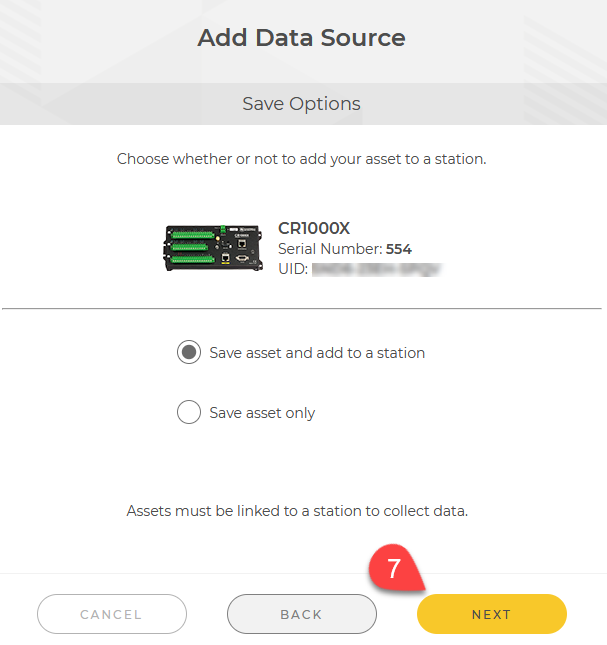
Select Save asset only or Save asset and add to a station. Click NEXT.
NOTE:Adding an asset to a station will start ingesting data for historical purposes. If you do not wish to start recording historical data yet, choose to only save the asset and create/add the station when you wish to record data.
-
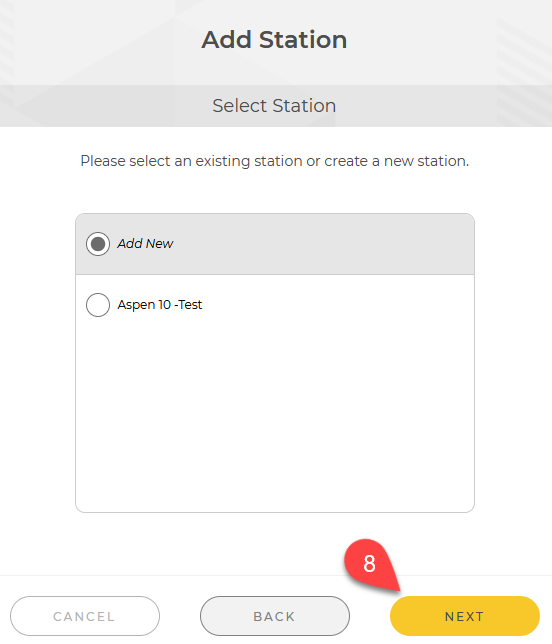
If adding the asset to a station, click Add New or select an existing station. Click NEXT
-
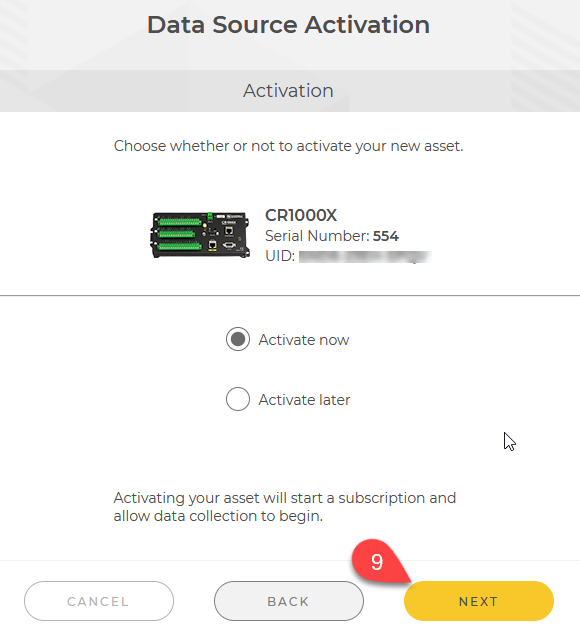
Select Activate now, or Activate later. Click NEXT to complete activation.