Histogram
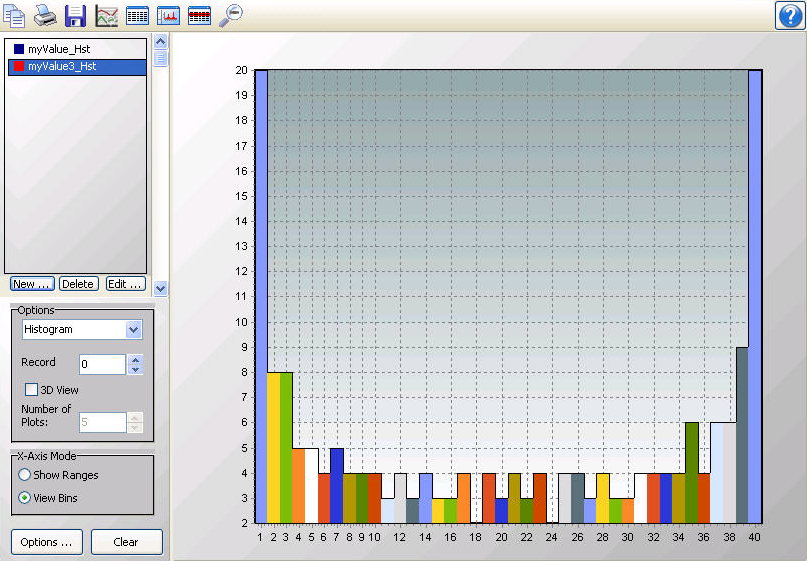
From the Histogram screen, you can view histogram data. The Histogram button on the toolbar will be enabled if there is at least one valid histogram in the currently selected data file.
NOTE: View Pro does not create histogram data from time series information. It only displays histogram data contained in a *.DAT file. Histogram data in a *.DAT file is created by using the CRBasic Histogram instruction in a CRBasic program Data Table.
View Pro cannot display histograms from a TOACI1 data file.
Multiple Histogram screens can be created.
Selecting Data to be Viewed
From a Histogram Screen
When a Histogram screen is first opened with no histogram records selected in the data file, the Histogram Setup dialog box will open which allows you to set up the Histogram. The first option is a drop-down list that shows the available histograms in the currently selected data file. Select the histogram that you would like to view. The second option allows you to choose which record of the histogram you would like to view initially. Type in a number directly or use the arrow keys to the right of the box to change the value.
This dialog box can also be opened from a button,  , on the Histogram toolbar. This allows you to change the options for the histogram record that is selected in the list on the left side of the Histogram screen.
Additional histogram records can be added by pressing the New button. (These additional records can be from either the same histogram or a different histogram in your data file.) You can then choose which histogram record is being displayed by selecting it in the list.
From the Data Grid
You can also select histogram records directly from a data file to be displayed on a Histogram screen. Clicking on any data value in a histogram record will select that histogram record. Histogram records can be selected before the Histogram screen is opened with the Selected Graph set to None. When the Histogram screen is opened, all selected histogram records will be listed on the left side of the Histogram screen. A histogram record can then be displayed by clicking on it in the list. Once the Histogram screen is opened, additional histogram records can be added to the Histogram screen by selecting them in the data file as described above.
NOTE: All histogram records from the same histogram will have the same default name in the list. They can be distinguished by the colored boxes next to their names. Each box is the same color with which that histogram record is highlighted in the data file. It is also the color with which that histogram record is displayed if the “Use Selection Color” option is chosen in the Selection Properties dialog box. The color associated with a histogram record can also be changed from this dialog box. (The Selection Properties dialog box is opened by clicking on the histogram record in the list and then pressing the Edit button.)
New
Brings up the Histogram Setup dialog box to allow you to add a new histogram record to the display.
Delete
Deletes the selected histogram record from the Histogram.
Edit
Brings up a dialog box to set properties for the selected histogram record. This dialog box can be used to set properties for Display (name, color, marks) , Y Axis (scaling, limits, and title), and X Axis (scaling, limits, title).
Options
Determines the graph type. Select Area, Histogram, Line, or Bar from the drop-down list.
Record
Indicates which record of the histogram is being viewed. The arrow buttons can be used to scroll through records of the histogram.
3D View
Determines whether the histogram is viewed in 2D or 3D mode. Select the checkbox to view the histogram in 3D. Clear the checkbox to view the histogram in 2D.
Number of Plots
This field is only enabled for 3D View. Sets the number of plots (histogram records) to be viewed.
X-Axis Mode
Determines how the labels on the X-Axis are displayed. Select Show Ranges to have ranges of data values shown on the X-Axis. Select View Bins to have bin numbers shown on the X-Axis.
Options
Brings up the Options dialog box for the Histogram. This dialog box can be used to set the title, margins, and chart colors.
Clear
Press this button to clear all histogram records contained in the Histogram.
Zoom Feature
You can zoom in on a particular area of a Histogram by holding the left mouse button and dragging the mouse pointer from top-left to bottom-right (or bottom-left to top-right) over the area to be zoomed. Pressing the Undo Zoom toolbar icon  or dragging the mouse pointer from bottom-right to top-left (or top-right to bottom-left) will undo the zoom.
In 3D View, you can also zoom in and out by using the Page Down and Page Up buttons on your keyboard.
Rotating the Histogram
In 3D View, you can rotate the Histogram by using the scroll bars at the bottom and right of the Histogram.
Right-Click Menus
Right-clicking on the graphical display area will bring up a menu from which you can choose Export to save the Histogram in a choice of formats, Copy to Clipboard to place the Histogram on the clipboard, Print to print the Histogram, or Options to bring up the Histogram’s Options dialog box.
Right-clicking on a histogram record in the list above the New, Edit and Delete buttons brings up a menu from which you can choose Edit Selection to bring up the Selection Properties dialog box, Delete Selection to delete the selection from the Histogram, or Selection Summary to see information about the histogram record, the data file, and the datalogger and program that generated the data file.
Histogram Toolbar Icons
The Histogram includes the following toolbar icons:
|
|
Copy to Clipboard. Places the Histogram graphic on the Windows clipboard. It can then be pasted into other applications. |
|
|
Print. Prints the Histogram. Print options can be set before printing begins. |
|
|
Export. Allows the Histogram to be exported in a choice of text or graphical formats. |
|
|
Histogram Options. Opens a dialog box from which you can set properties for the Histogram including scaling, colors, margins, titles, etc. This dialog box can also be brought up by pressing the Options button. |
|
|
Show Table. Brings the main View Pro window in front of other windows, making the data file(s) visible. |
|
|
Show/Hide Gradient. A toggle button that turns on and off the gradient background of the Histogram. It may be useful to hide the gradient, when printing the Histogram. |
|
|
Modify Selection. Brings up the Histogram Setup dialog box from which you can change the options for the selection. |
|
|
Undo Zoom. Returns the Histogram to its original state after zooming. |


